






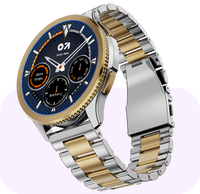
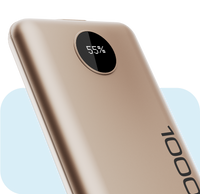

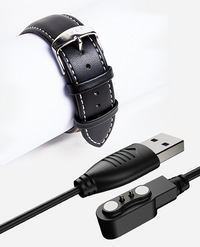

Congratulations on your new Goboult purchase! Registering it takes about two minutes and activates your official warranty, 1 year for most products, or 3 months for Wired products. This guide walks you through the whole process, field by field, so there's no guesswork.
What is warranty registration and why does it matter?
Warranty registration is how you officially activate the coverage on a product you've just bought. Without it on file, our team has no record to check against if you ever need a repair or replacement later, so it's worth doing as soon as your product arrives.
What should I have ready before I start?
Keep these three things handy so you can fill the form in one go.
Your invoice or order confirmation, for the exact purchase date.
The product box, for the exact model and colour name.
A mobile number and email address you check regularly.
How do I get to the registration form?
There are two easy ways in.
On our website: go to goboult.co.in/pages/warranty-form from your phone or computer.
Scan the QR code: look for the QR code printed on your product box. Scanning it with your phone's camera takes you straight to the same registration page.

Once you're there, you'll be asked to select a product category. Choose your product category and this will open the registration form.
Step 1: Fill in your details
The form has a few simple fields. Here's what each one means and how to fill it in.
Email: enter an email address you check often. We'll use this to send your warranty confirmation.
Name: your full name, exactly as you'd like it to appear on the warranty record.
Mobile Number: a number we can reach you on. Using the same number you ordered with makes it easier to match your purchase if you ever need support.
Product: select your exact product model and colour or variant from the dropdown, for example "Crown Jet Black" for a smartwatch. Check the box or your invoice if you're not sure of the exact name, since it needs to match precisely.
Purchased From: select the store, app, or website where you bought your product.
Date of Purchase: enter the date shown on your invoice or order confirmation, in DD/MM/YYYY format. This box automatically shows today's date when the form loads, so remember to change it to your actual purchase date.
"I'm not a robot": tick this box and complete the quick verification if asked. This just confirms a real person is submitting the form.
Step 2: Submit
Once every field is filled in correctly, click Submit. That's it, your product is now registered. Keep an eye on the email you provided for your warranty confirmation, and save it for your records.
Whether you've registered a TWS, smartwatch, earbuds, neckband, headphone, speaker, home audio system, or powerbank, our Goboult customer care team is reachable on WhatsApp or email if anything's unclear.
A few tips before you submit
Double check the Date of Purchase before submitting, since it's the field most people forget to update.
Keep your invoice or order confirmation safe in case you need to raise a warranty claim later.
Can't find your exact model or colour in the Product list? Don't guess, contact Customer Support so your warranty is recorded correctly.
Use the same email and mobile number you used when ordering, so your registration is easy to match to your purchase.
Need More Help?
Raise a Service Request: goboult.co.in/pages/raise service request
Track a Service Request: goboult.co.in/pages/track your service request warranty claim
Customer Support: goboult.co.in/pages/support
WhatsApp Customer Care: +91 9289803880, send "Hi" to start
Customer Care Email: support@goboult.co.in

